


You are looking to create multi page PDF from Photoshop CS5 ? It reminds me of the reason why I wrote this article.
When it comes to PDFs, do you have a love hate relationship with them? PDF are universal on mobiles and tablets, they scale, they look great, but try and make a PDF the way you want it and the Adobe nightmare arrives. So creating a multi page PDF from Photoshop CS5 is all about discovering one Adobe secret!.
After hours of painful searching and trial and error with my Photoshop, I actually wrote this article for myself, so I don’t forget how to do it. Although I thought it would be relatively easy to find a guide to a make a multi-page PDF, I never realised how difficult Adobe would make it. Well I’m here to take your pain away.
Why create multi page PDF in Photoshop CS5?
Where we have gone from paper to digital, pages still feel natural. What most PDF products will do is put all created pages into one long PDF page. It looks rubbish and isn’t very useful. For some reason if you try creating it from within Adobe Acrobat, it requires a payment for a licence. I don’t mind paying for a licence, but what would be the point when my current CS5 Photoshop licence enables me to do it already?
“Adobe Bridge” is the secret multi page PDF creator
Most web sites are saying it can’t be done on CS5. The secret is realising that if you have to open Bridge from within Photoshop, then you are equipped to create your multi-page PDF.

If you haven’t done so already you must take a look at the easiest process (with screenshots) on the create a multi-page pdf article
So here is the easy route for a PDF creator
- Create your individual PDFs pages in Photoshop
- Save them as .PDF file.
- Open Adobe Bridge from within Photoshop
- Open Bridge and set the Output then save .
As you may of gathered from seeing my website, I’m a web designer and I have used Photoshop for 20 years. I recently decided that rather than make the multi page PDF for my client, I would also make one for myself. So here is what I did using the process above. Hopefully it will inspire you to do something similar.
Since the new online Photoshop this hasn’t been an issue. What is surprising is you were able create multiple page pdf’s in Photoshop CS3 and CS4. Photoshop CS5 is the exception, but now you know the Bridge secret you have inherited my PDF freedom
Creating a multi-page PDF in Photoshop presentation
I initially started by making my 5 pages within 5 folders within Photoshop. Each folder contained all of the desired layers for the one page. Also I set the size of the screen to 2480 pixels width and 3508 pixel height. Notice the folders on the layer area. In this example I will save the cover folder (the top visible layers) and save this as a high definition PSD. The reason its a PSD and not a PDF is it will provide a much better quality end result if you use PSDs instead of PDFs in Bridge.
Zanet example in screenshots below:

This bit is important if you want a high quality output. Save each page as a PSD not a PDF. Even if they are flat 1 layer PSDs. that’s all you need. Once you have converted all files to PSDs. Save them into a folder you can easily locate from within Bridge. See the 6 pages below in my live example.
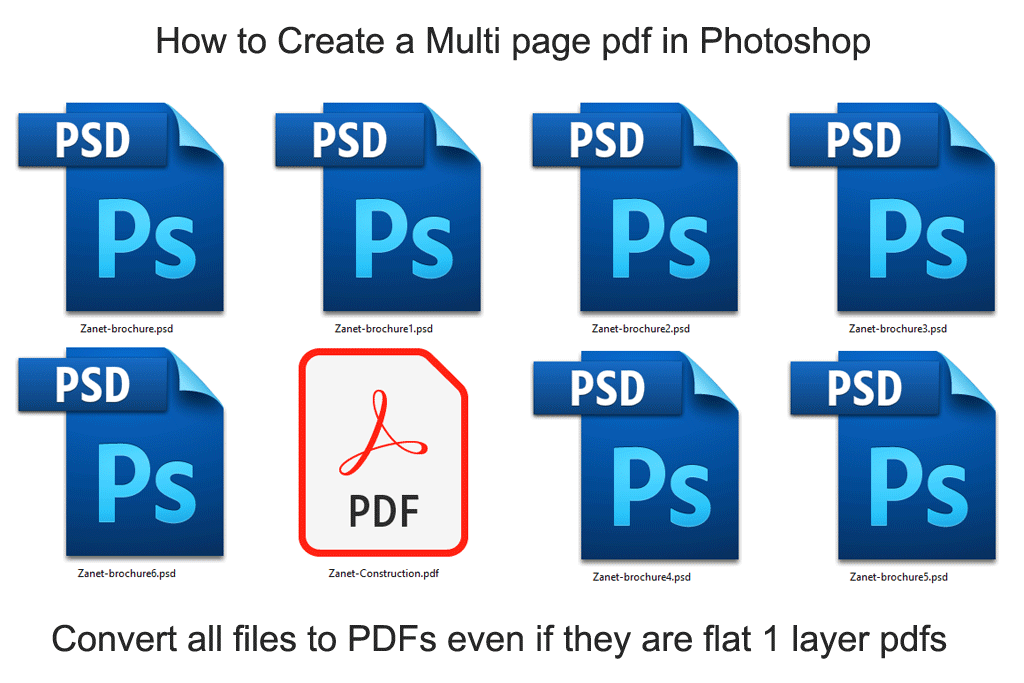
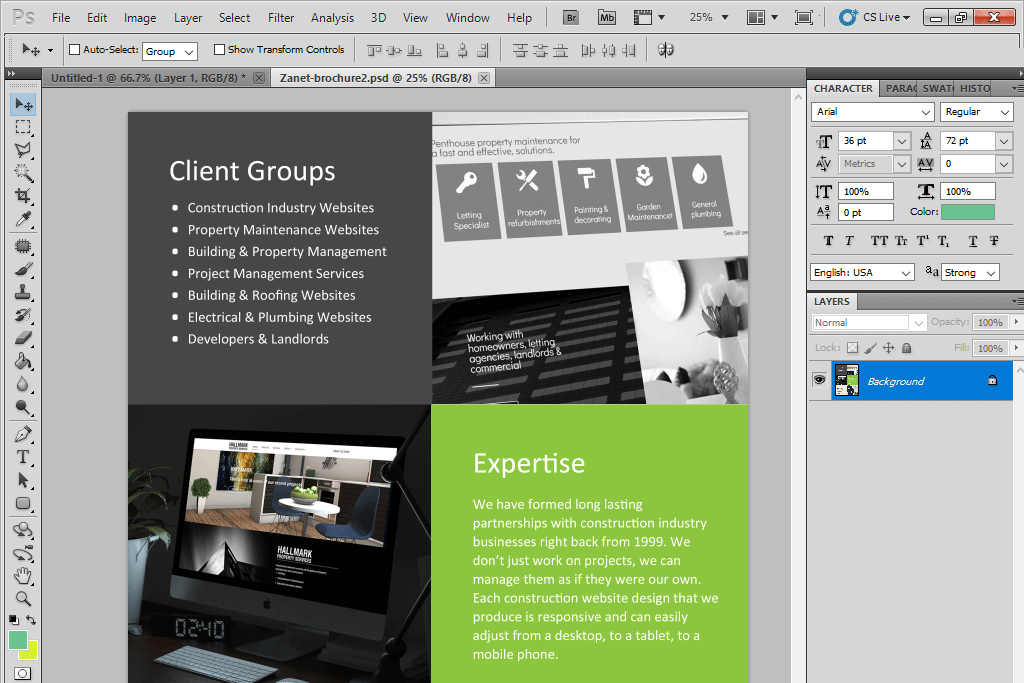
Notice if I open up the PSD for the page it is just the one layer. Now your ready for importing these into Bridge – see How to create a multi-page pdf article with Bridge.
I hope this is helpful. Let us know if you have any questions in our comments below, we want to support you.